Cover me, overrides and schedules
Last updated: August 20, 2025
📆 Schedules
When you or your team member has built schedules for your On-call, you are now able to view them from the incident.io dashboard or your mobile.
Dashboard
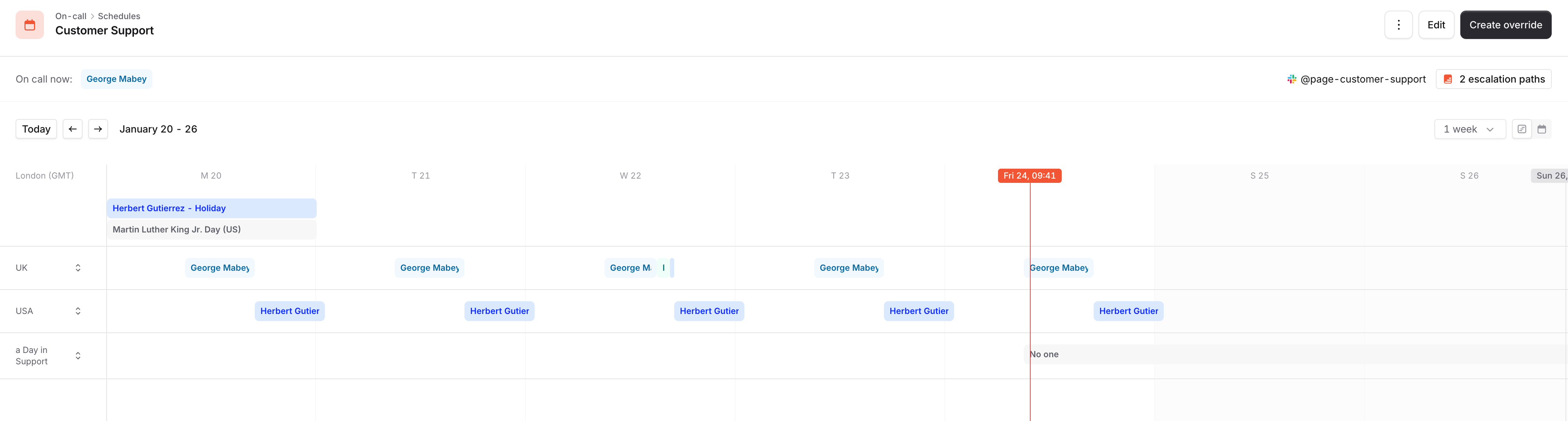
Just head to your Schedules and you'll be able to view the final schedule, but also add overrides.
Mobile
In mobile, you'll be able to view your schedules or all schedules. Just open the incident.io mobile app and click the calendar icon to get to the screen.

🔄 Sync your on-call shifts to your calendar
⚠ We only show shifts within the next 3 months, not beyond that. We believe 3 is a good balance between providing great visibility and keeping the schedules up-to-date.
Bring your own or all shifts to your Google or Outlook calendar by just copying a URL.
1⃣ Head to schedules
2⃣ Click sync schedule from the top right
3⃣ Choose if you want your shifts or all shifts from the schedule
4⃣ Copy the URL and bring it to your calendar app!

✋ Cover me
You can only request cover for shifts you're personally scheduled for - not on behalf of other users, regardless of your role.
Workaround: Add yourself as an override to the slot, then create a cover request.
Want Admins/Owners to request cover for others? Let us know and we'll add it to our feature requests!
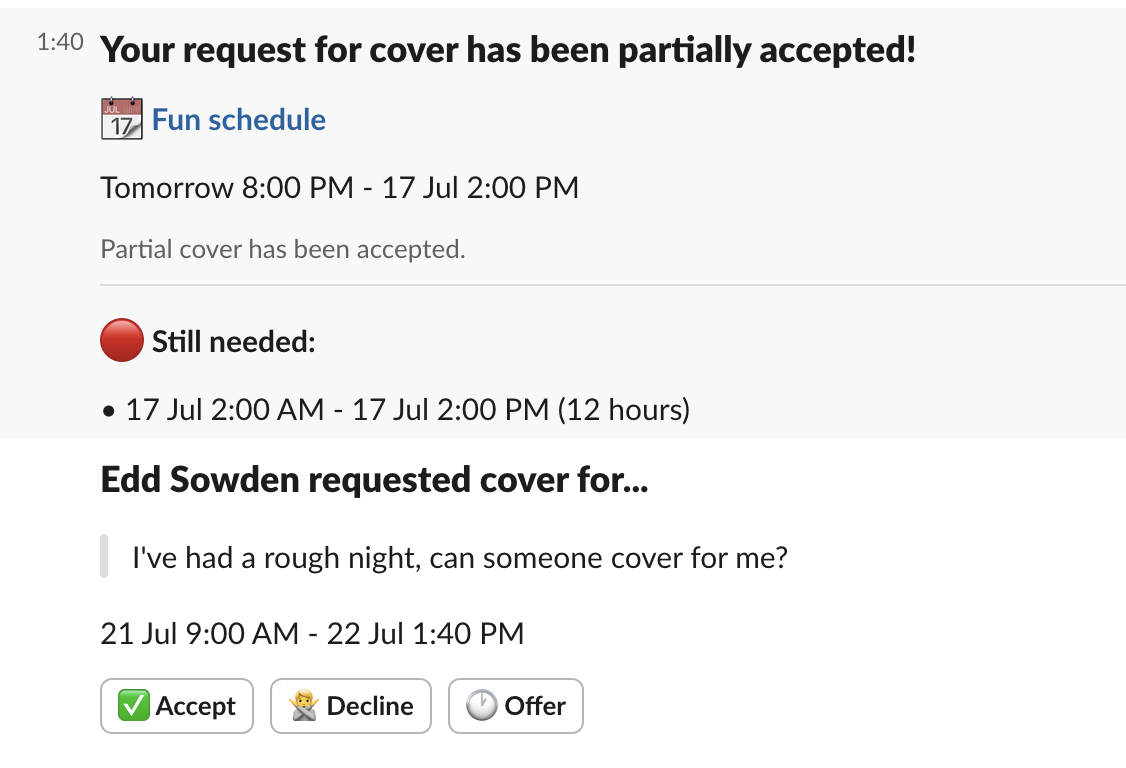
Ask for cover for a shift and we’ll send notifications to the people in your schedule to ask, and if they say yes - we’ll let you know it was accepted! If accepted, an override is created automatically.
When requesting cover, the cover request will be sent to all people in the schedule. When someone has accepted the request, we will remove the possibility from others accept it and you will get a confirmation who has taken the shift. You can request for cover for partial hours too.
Slack
1⃣ Type /inc cover me to any channel the incident.io slackbot is in.
2⃣ This will then open up a screen to add details of the shift you want covering for

3⃣ Add more details why you need cover

4⃣ Receive a confirmation of the request

Mobile
To request cover in mobile, head to Schedule view. You can either:
Click the top right icon and choose the 'Request cover' -tab.
Click a shift, and drag the section you want to request cover for.

Below you'll also see how a cover request looks like when someone is in the receiving end. After someone has accepted cover, the override will be made automatically.

Dashboard
You can view, create and respond to cover requests in the dashboard
You can 'offer to cover' for some or all of the requested time, with a message attached
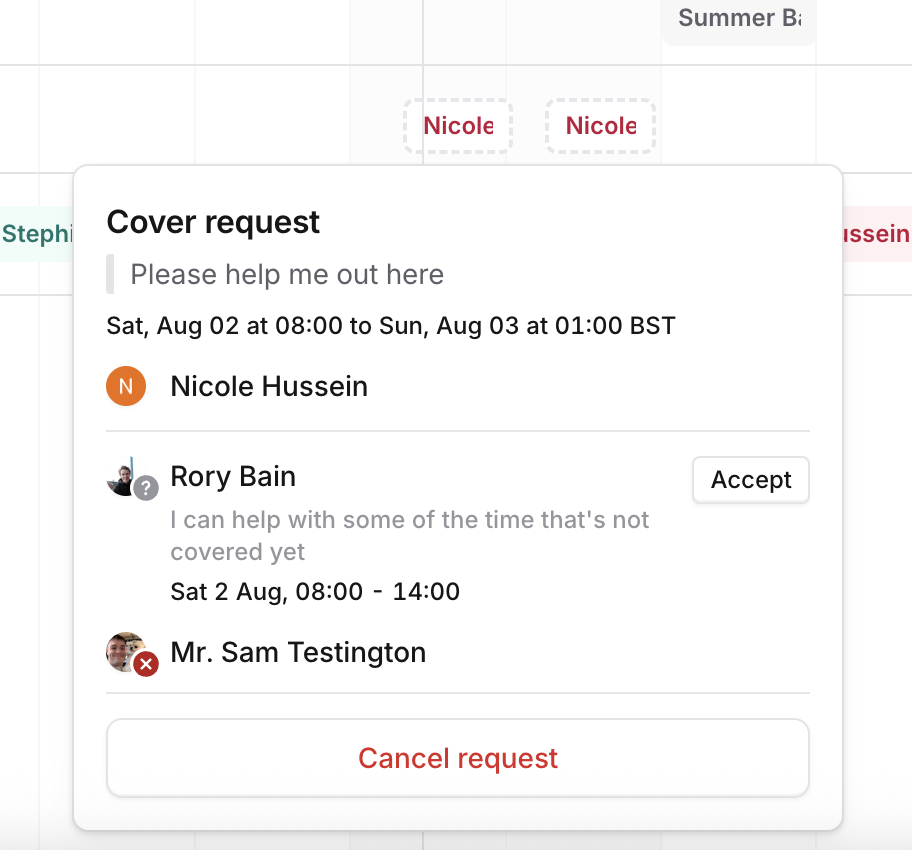
You can send a reminder from an open cover request, which will send a push notification to those who haven't responded yet
🔴 Overrides
If someone can’t make a shift because they are on holiday or have an appointment, anyone can create an override by choosing when and who they want to override the shift with. This can be done via mobile or the dashboard.
Dashboard
To create an override, you can:
Click "Create an override" from the top right of a schedule
Click on the shift you want to override
Like on mobile, drag and drop the section of a schedule you want to override
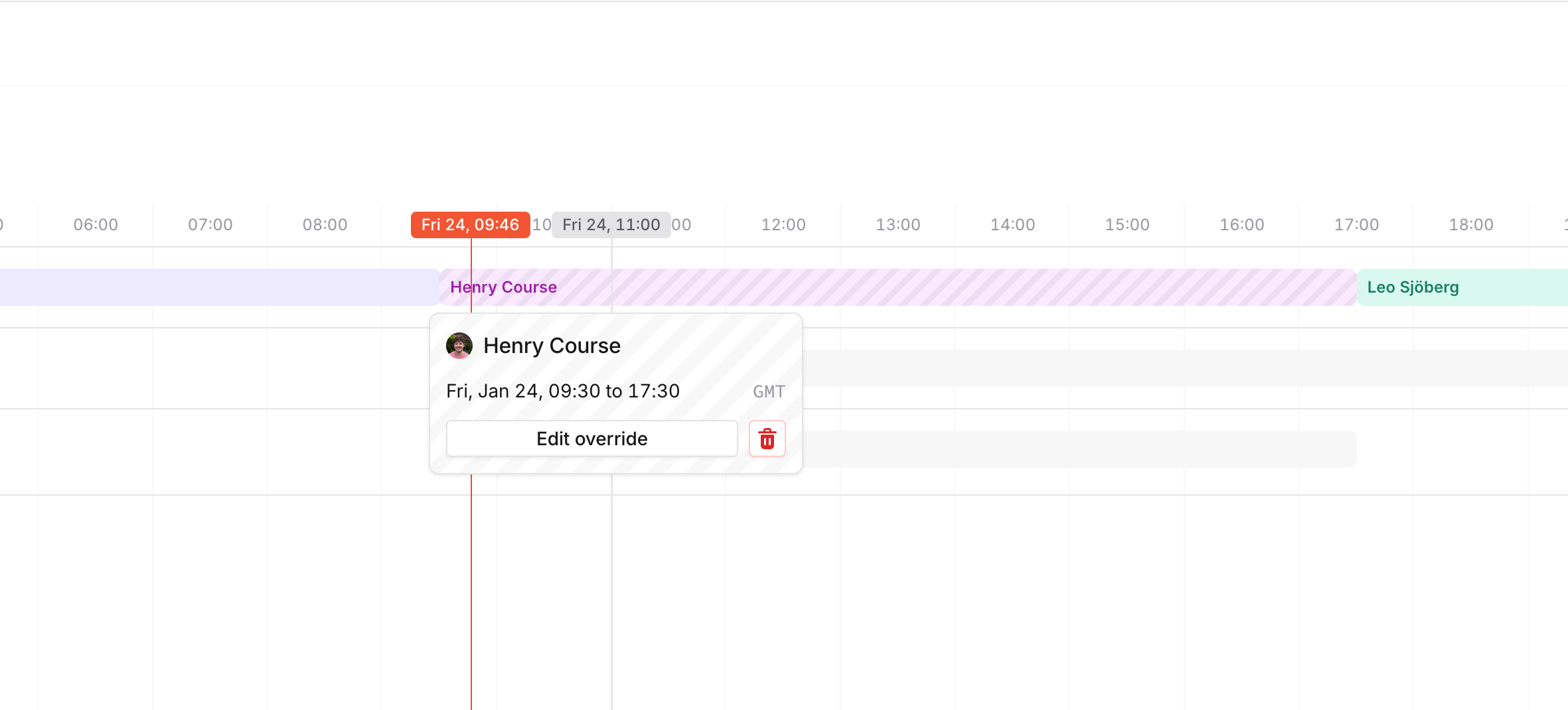
To edit an override, click on the overridden shift you want to edit
To delete an override, you can do it from the edit screen, or by selecting "Delete" on the tooltip
Mobile
To create an override in mobile, head to Schedule view. You can either:
Click the top right icon and select the 'Create override' -tab.
Drag and drop the portion of a shift you want to create an override for
You can edit or delete an override by tapping an overridden shift and selecting what you want to do.


