On-call notifications and preferences
Last updated: January 8, 2026
On-call uses multiple channels (Mobile app, phone, SMS, Slack and email) to notify you of upcoming shifts and escalations.
You'll be able to use either the dashboard or the mobile app to add your contact methods and set notification rules.
🤙 Contact methods and notification preferences
Set up all contact methods you'd like to use within the incident.io dashboard. You can find your preferences by clicking your profile and then choosing preferences.
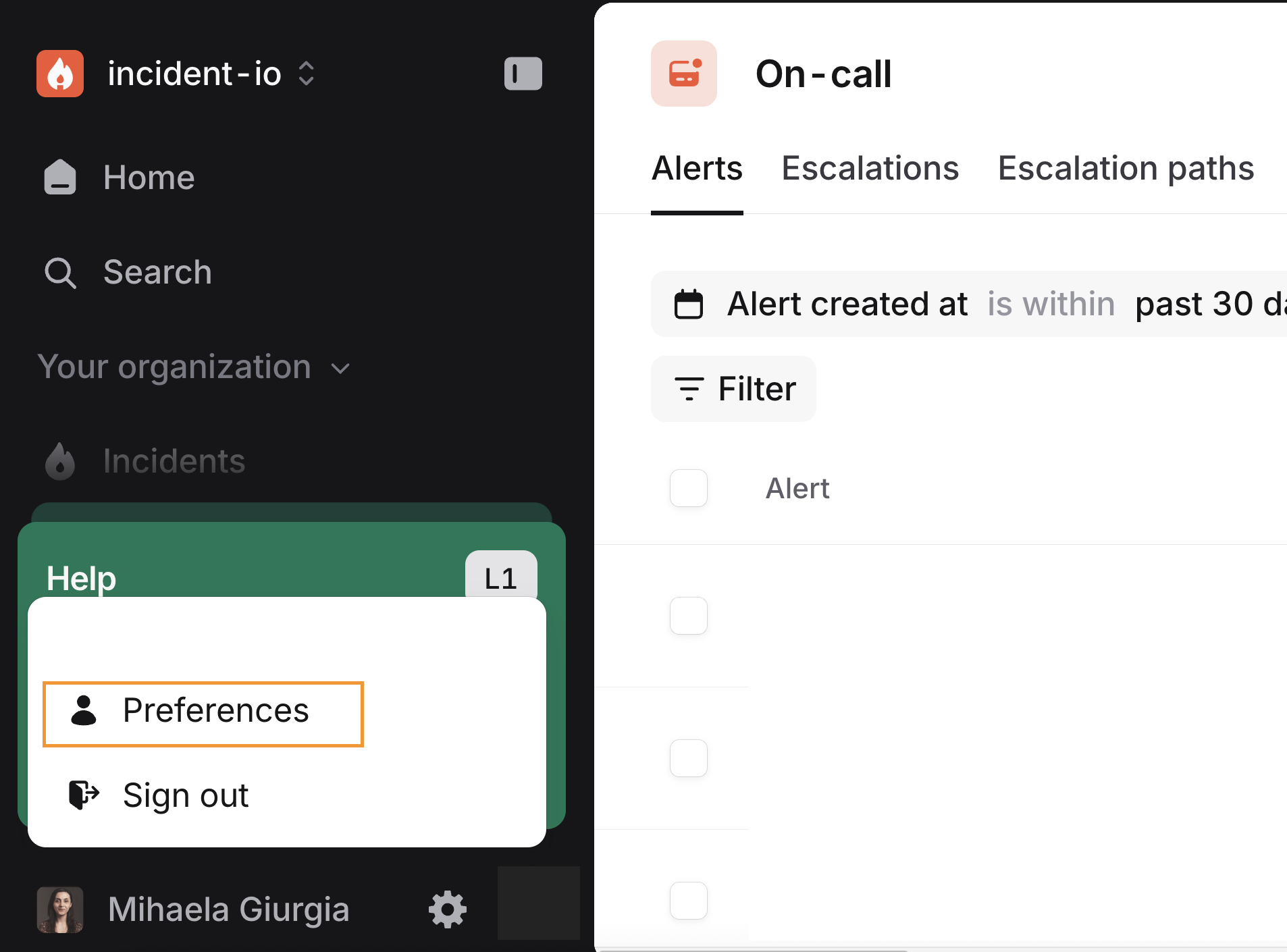
Your Slack and email notifications should already be setup for you here by default but we'd also highly recommend adding your phone and downloading the mobile app as it is one of the most popular contact methods when escalations arise.

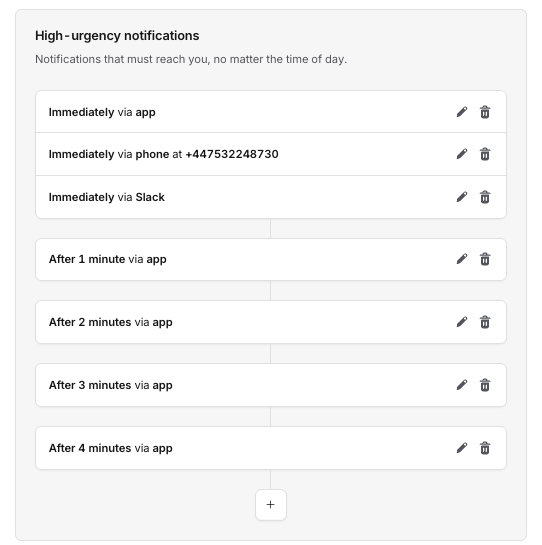
After having all the methods you want to use for notifications, you can choose how we should notify you when you are on-call or are being escalated to e.g. via app, SMS, Phone Call, Slack etc.
We have sensible default rules for your notifications but you can edit those rules depending on what works best for you. For example, you can add up to 10 levels of incrementally delayed notifications.
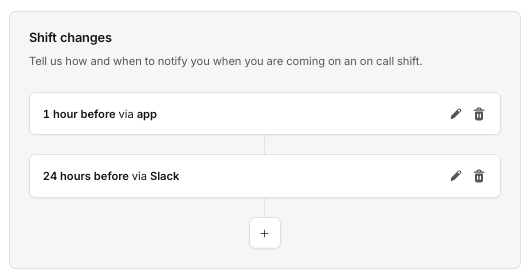
Additionally, it's important to have reminders to know when you are about to be on-call. Below On-call notifications, you can adjust your shift change rules to ensure you remember to be ready for your next shift!
📱Mobile app settings
When you have downloaded the incident.io mobile app and signed in via Slack or SAML, we will guide you to an onboarding flow to help you set up the right notifications. This will include:
1⃣ Enabling Push Notifications
2⃣ Enabling Critical Notifications
3⃣ Saving our Contact Card on your phone
4⃣ Verifying your phone number
5⃣ Bypassing the 'Do not disturb' mode

Doing all the above ensures that you will not miss any important updates or notifications! You will be able to review all settings in the mobile app later on.
🧪 Testing
After setting up all notifications and preferences, you can test that all notifications paths work. Just click "Test" on mobile or the bell icon on the web app and you should receive a test message to the right channel.

📝 Mobile app preferences
Additionally, you will be able to change appearance between Light and Dark mode on the settings page of the mobile app. You can also just follow the device's theme you have set up.

💡You can find more details about bypassing the 'Do not disturb' mode in iOS and Android in this help article