Manually adding and removing Scribe from your incident calls
Last updated: January 8, 2026
Scribe is incident.io's AI-powered transcription and summarization feature for incident calls. It allows you to automatically generate transcripts and summaries of your calls, making it easy to keep track of important discussions and action items.
We understand that during incident calls, there may be times when you need to discuss sensitive or private information that you don't want transcribed. That's why we've introduced the ability to add or remove Scribe from your calls on the fly.
When to use this feature
Some situations where you may want to temporarily remove Scribe from your calls include:
Discussing sensitive customer data or PII
Whenever you need to have "off the record" conversations during an incident
Remember, you can always add Scribe again once you're ready to resume capturing the incident discussion in the transcript and summary.
We hope this new feature gives you more control and flexibility in how you leverage AI transcription during incident response. If you have any other questions, feel free to reach out to our support team.
How to add or remove Scribe during a call
You can now easily add or remove Scribe transcription at any point during an incident call using the web dashboard, Slack, or Microsoft Teams.
Scribe currently supports Zoom, Google Meet & Microsoft Teams integrations.
Managing Scribe for Zoom and Google Meet calls
Web dashboard
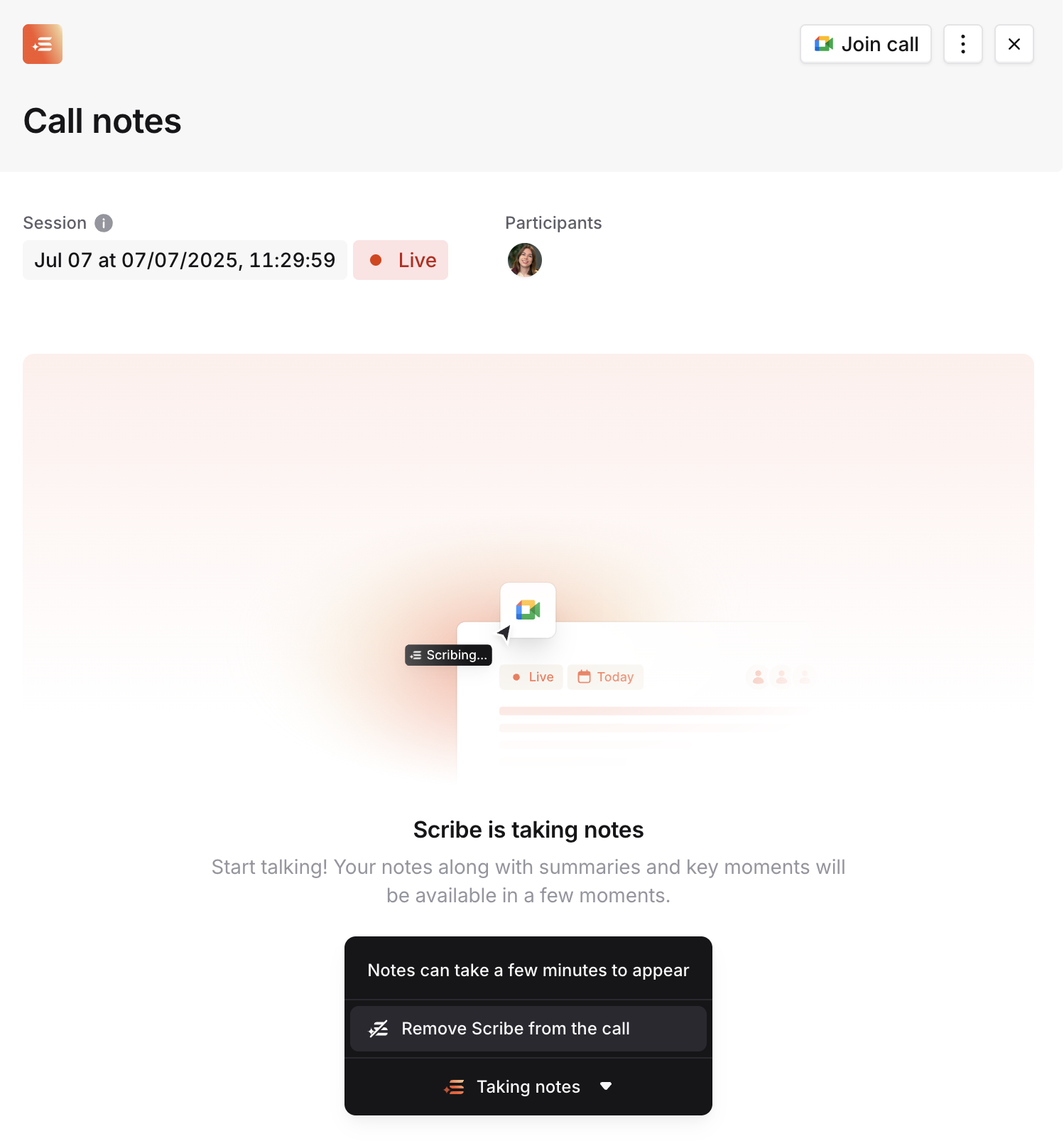
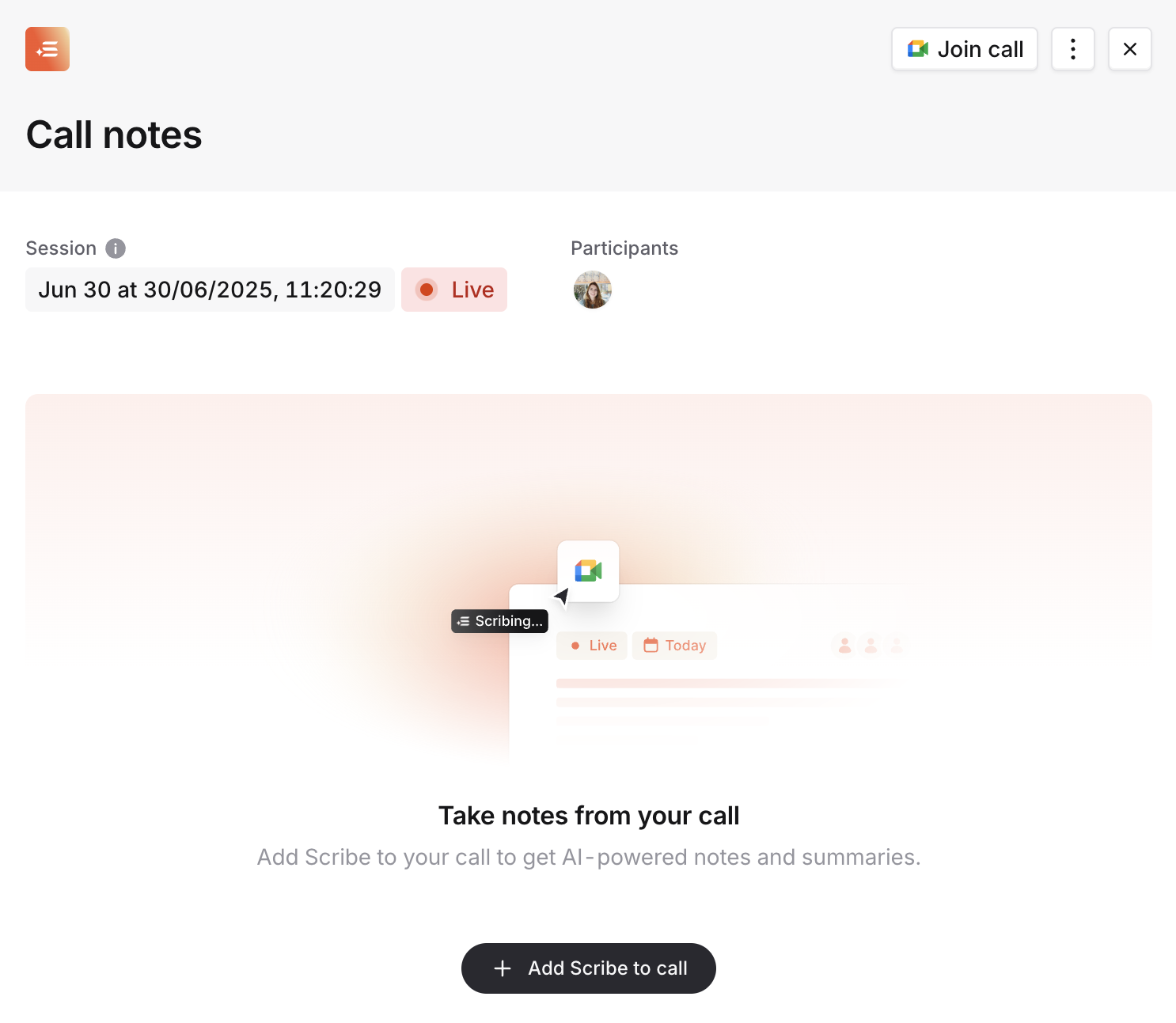
During an incident call, open the call notes drawer from the incident page
Click on the toolbar to expand it, and click 'Remove Scribe from the call'
To add scribe back, simply click 'Add Scribe to call' in the same toolbar
Slack
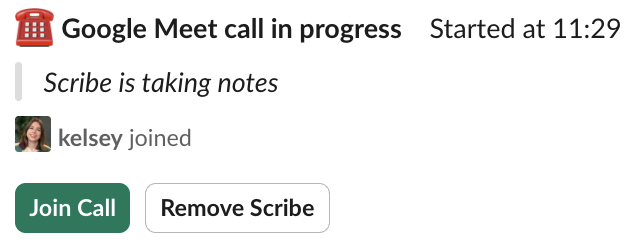
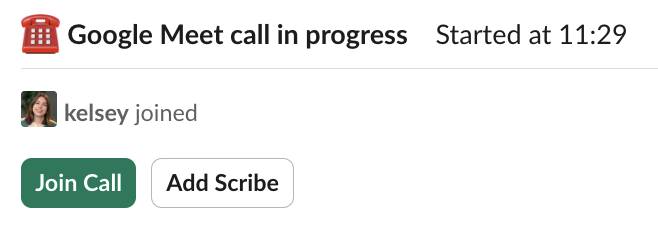
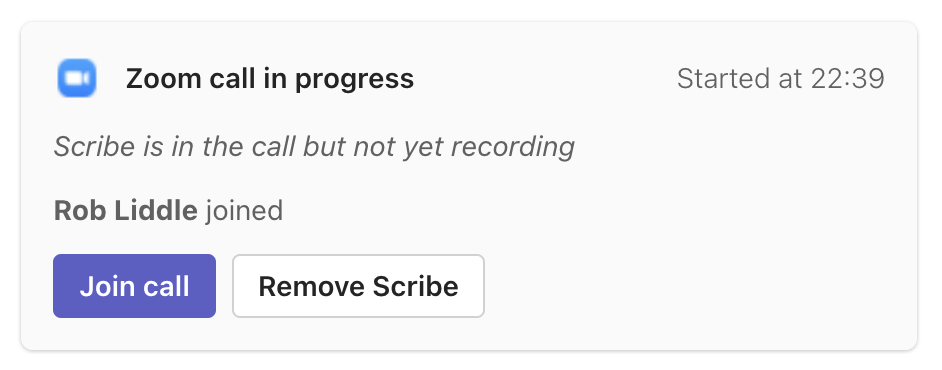
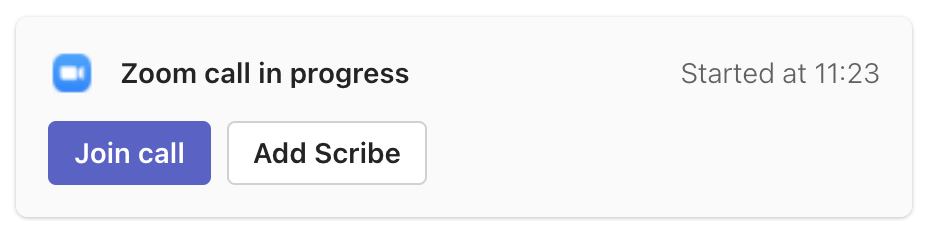
While an incident call is active, we'll show you buttons to add or remove Scribe based on the current status of Scribe in your call.
Microsoft Teams
As in Slack, when an incident call is active, we'll show you buttons to add or remove Scribe based on the current status of Scribe in your call.
Managing Scribe for Microsoft Teams online meetings
We don't track live call information for Microsoft Teams online meetings, so Scribe can only be manually added.
Web dashboard
You can add Scribe to a call using the "Add Scribe" button on the incident details page.

Slack
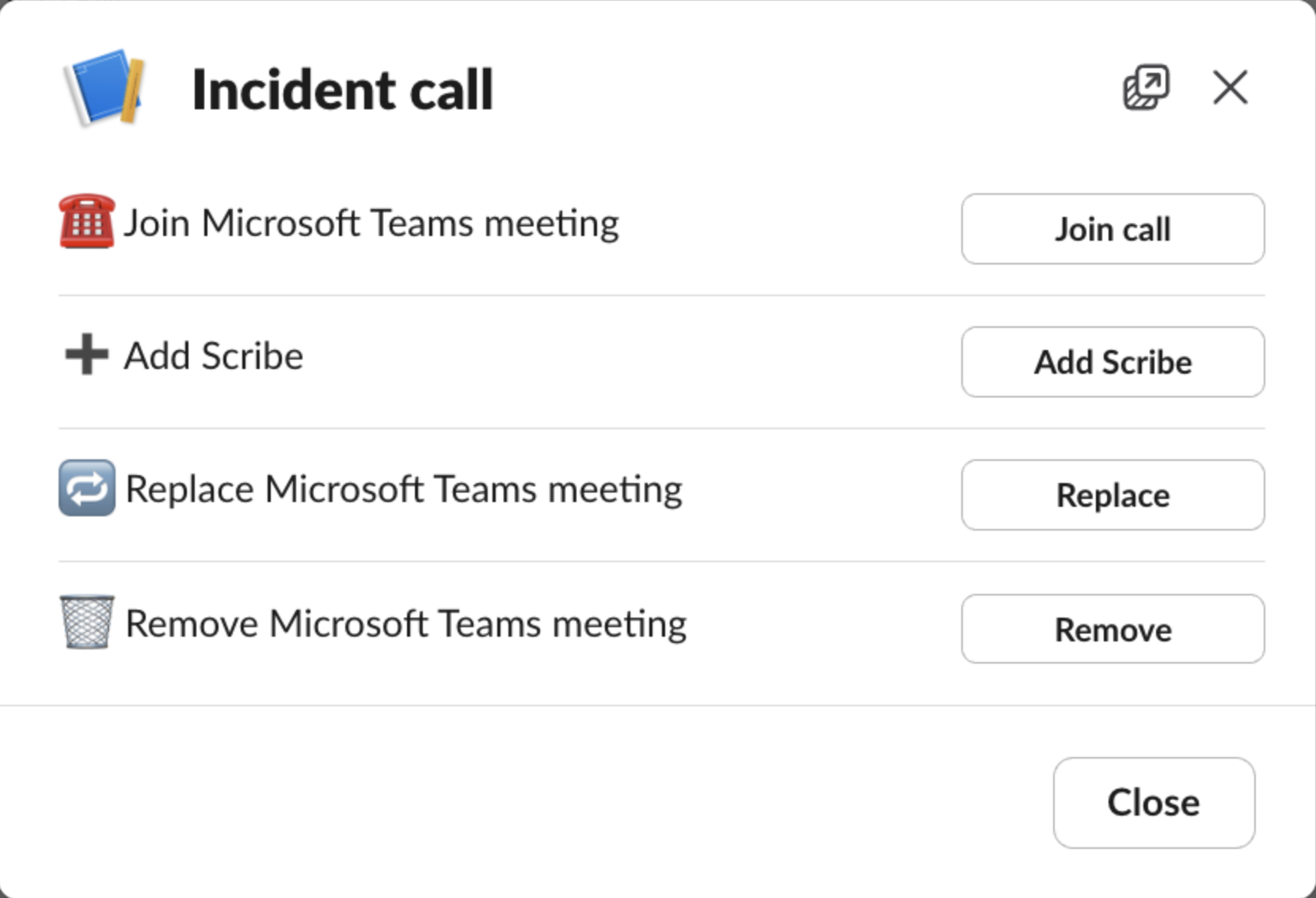
You can add Scribe to a call from the incident call modal, which can be accessed via /inc call or /inc scribe
Deleting incident call notes
In the event that sensitive or private information is accidentally transcribed, call notes can be easily deleted, removing trace of the information from the dashboard, Slack and Microsoft Teams.
Web dashboard
Navigate to the relevant incident and select the call notes containing sensitive information. The call notes drawer will open.
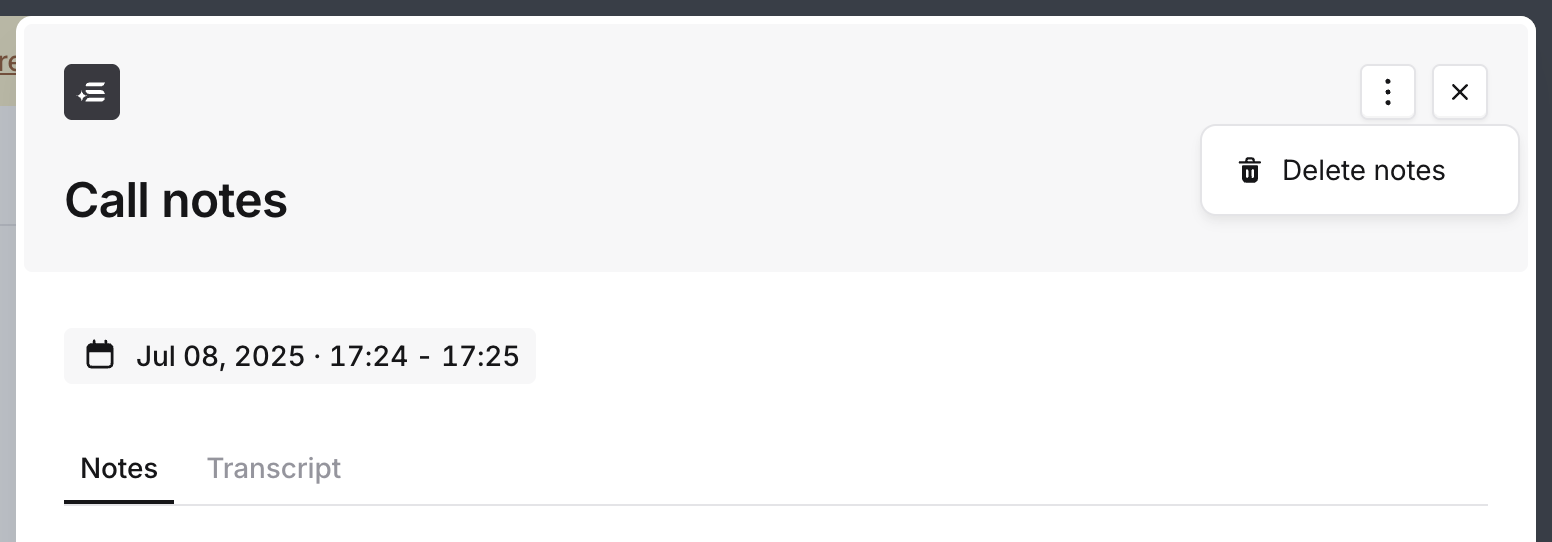
Click the three dots in the top-right corner to open the actions menu, and click "Delete notes". You will be prompted with a confirmation modal before proceeding.
Once deleted:
Transcripts and summaries will no longer be visible via the dashboard
Summaries and key call information posted in incident channels will be deleted or re-rendered without the deleted notes
Scribe will be removed if currently active in the incident call
