Policies
Last updated: November 10, 2025
You can leverage policies to define rules about how your organization's on-call and incident management program should be set-up and run. This includes policies around:
Debriefs being scheduled and/or completed
Follow-ups being assigned and/or completed
Post-mortems being exported and/or completed
On-call users having a specific notification set-up
If any of the policy rules are not met, we'll send users reminders to ensure they are addressed within a specified timeframe. In addition, you can set-up policy reports to see which tasks are still outstanding across your organization.
Creating a policy
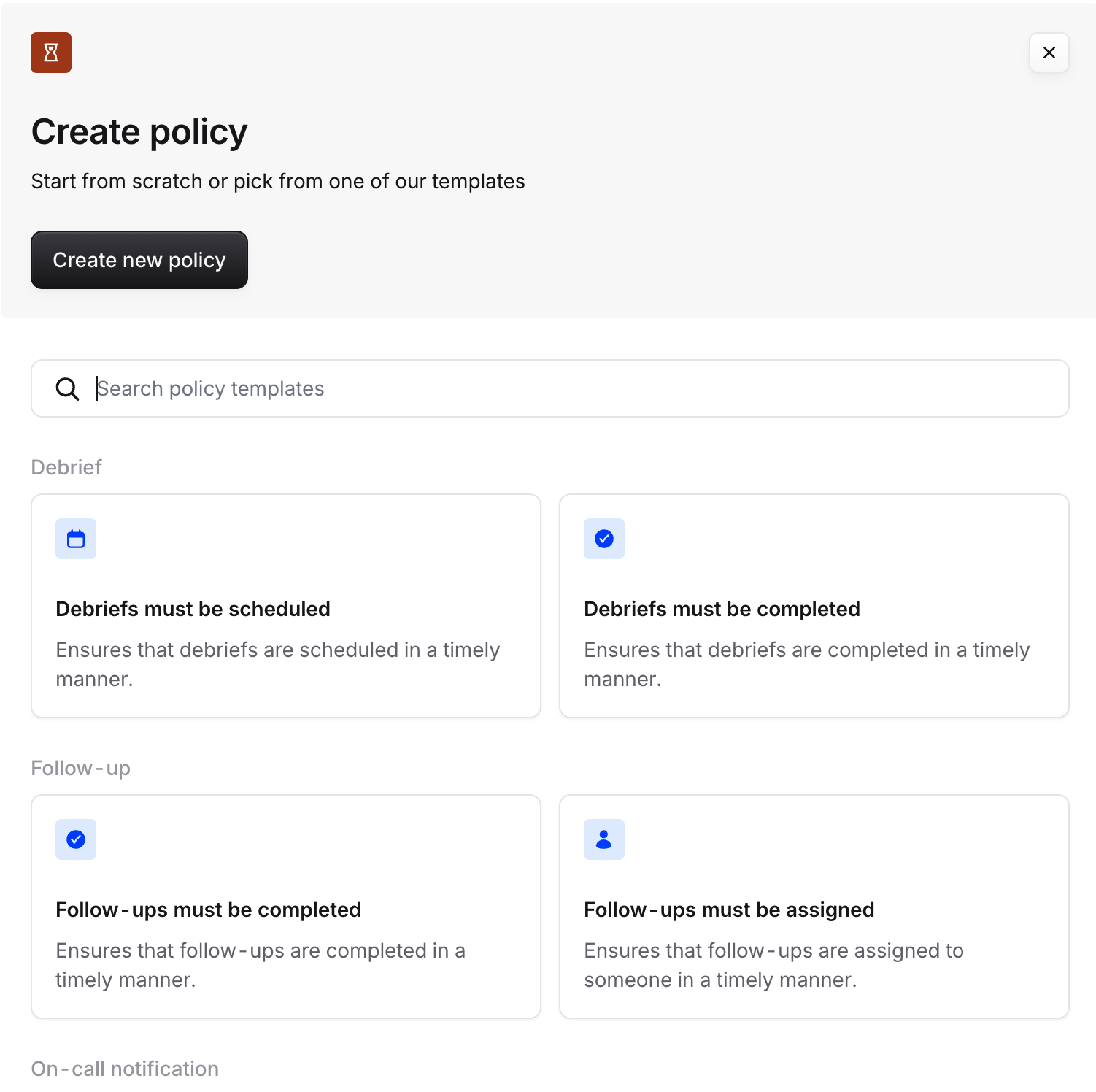
To create a policy, simply go to the incident.io dashboard and head to Settings → Policies. From there, it's recommended to leverage one of our default policy templates.
If you require a more complex set-up, you can set up your own policy via Create new policy button.
Viewing outstanding policy tasks
Once your policy is configured, you will likely want to see which tasks related to that policy are not completed. For example, which follow-ups haven't been completed 30 days after incident resolve. To view all the examples, we have several different ways to view across the product, including:
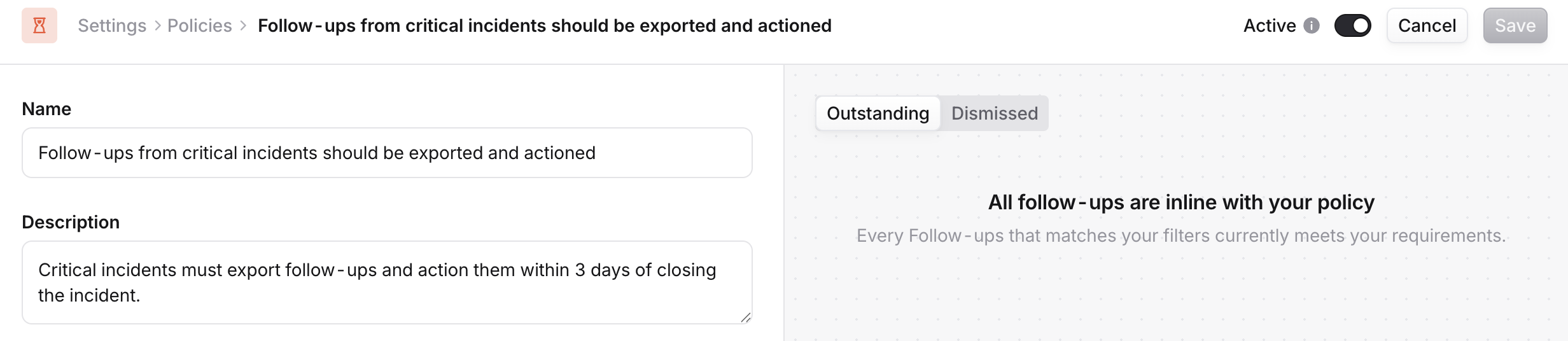
Within each policy's configuration, you can view outstanding or dismissed tasks in the right side panel
Peppered throughout the product, such as:
Within each individual incident
Within your team's page experience
Within the Post-incident section of the dashboard
Within a policy report (see more details below)
Creating a policy report
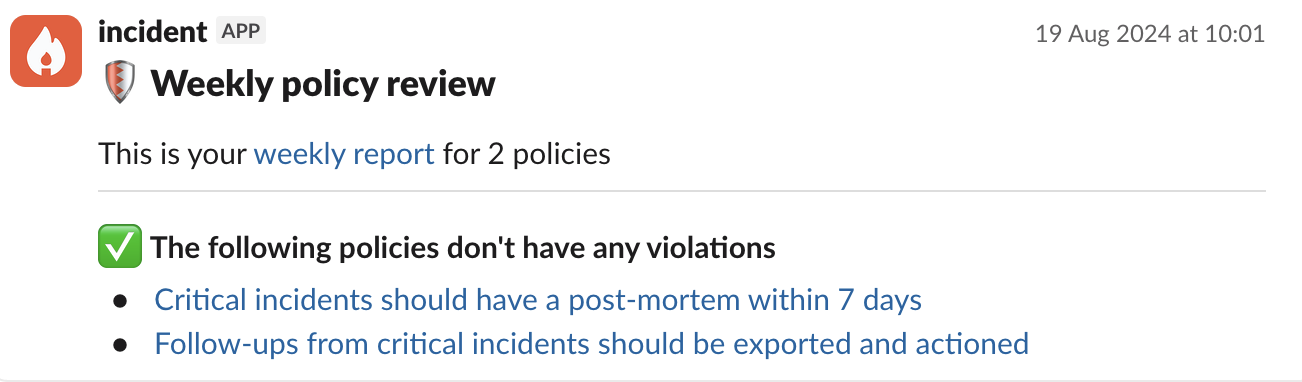
You can stay on top of outstanding tasks by heading to Settings → Policies and scheduling a report to run every day, week or month.
This report will be sent either to a Slack channel and/or email address of your choice. The report will summarize all the outstanding tasks related to those selected policies.
Notifying users about tasks
Within each policy's configuration, you will be able to set who is the assignee (ie. who will be reminded to complete this particular task). For example this could mean:
For On-call notifications, it would be the on-call user
For follow-up completion, this could be the follow-up owner
For post-mortem completion, this could be the incident lead
You can configure when the assignees should be notified about tasks as well. For example, notified follow-up owners:
2 days before it's due
Notifications before a due date do not apply to on-call policies such as notifications settings. This is because you are either in violation of that policy or not, there isn't a way to know you will be in violation beforehand (we aren't mind readers yet! 🔮).
the day it's due
1 day after it's due
etc.
We will then notify these users of their outstanding tasks via Slack, email and the home page (in the right side bar) per the policy's notification configuration.
